Ladybug Player
|
|
Small, Fast, Vivid ...
|
|
|
Introduction
|
|
Ladybug Player is a fast windowless multi-tasking media player.
Optimized for Windows 7 and 8, Ladybug Player can play almost any formats of media files, display 4K and 1080p video in vivid and clarity, use video hardware acceleration for Windows 8/7/Vista/XP from all x86/x64 processors.
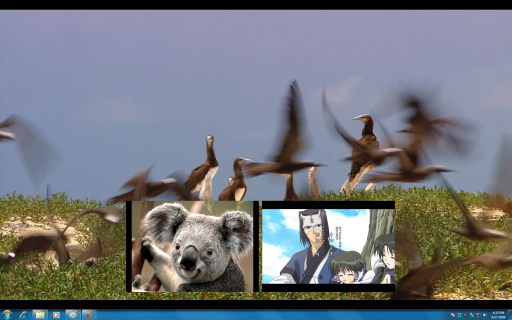
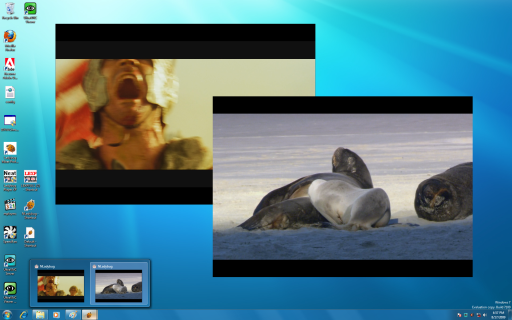
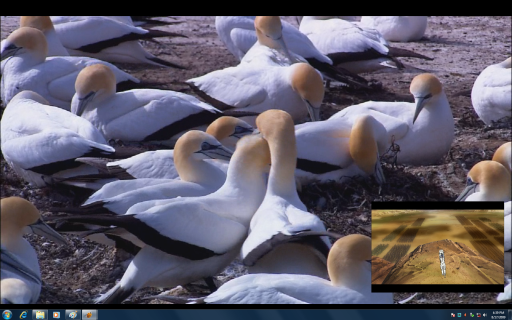
Multiple Ladybug Players can display videos in windowless simultaneously on multiple screens or in the form of Picture-in-Picture (PinP). A SQL database file is used to customize and configure the player. Moreover, Ladybug Player supports video presentation by displaying control panel on a ultrabook/tablet but video on a projector.
Finally, the 2D smartphone like Nbar and the simple playlist allow users to control and manage their media files easily.
Ladybug Player is suitable for video applications on Laptop, Embedded System, and Digital Signage.
|
|
|
|
Key Features
|
- Rich media format support
Support almost all media formats as HEVC, H.265. H.264, MP4, AVI, JPG, MP3
- Best for Windows 8/7
Work best on Windows 8/7 and run on Vista, XP, 2000, 2003, 2008
- HD video with hardware acceleration
Play FullHD video by hardware acceleration for Windows
- Multi-player and multi-screen
Multiple Ladybug Players can be run simultaneously on multiple screens
- Movable windowless for zoning videos
Display multiple videos on screen
- Customization by Embedded SQLite database
User can modify nwm database file to customize configuration and playback
- Video presentation launched by double click a video
Media control panel on ultrabook and display video on projector
- Playlist for continuous playback
Add, delete, and reorder media in playlist
- 64-bit Ladybug Player Available
Support Memory more than 4GB
- Capable to Play True 4K Ultra HD Video
Support 4K Video Standard HEVC (H.265)
|
|
Technologies
|
|
First technology used in the Ladybug Player is to access the hardware acceleration for video
processing. Second technology is to implement multiple players. Third technology is to use SQLite
database for player management.
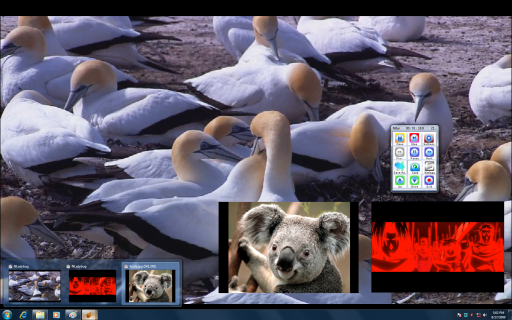
This snapshot shows three Ladybug Player, one in fullscreen, another two in picture-in-picture on Windows.
|
|
GUI
|
|
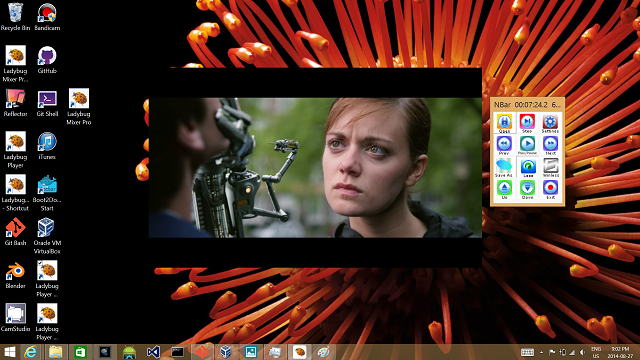
Ladybug Player is consist of a control panel and a video viewer. The control panel called Nbar is a set of 2D ribbon buttons. The viewer can be windowless or windowized. The Nbar and viewer can be put on different monitors.
Mouse is a device to control media playback on viewer. Double clicking the left mouse button on the viewer surface, the video can be resized from normal display to fullscreen or in reverse. User can also drop and move the view window to anywhere even if the view is in windowless. Clicking the right mouse button on the viewer surface, user can show/hide Nbar.
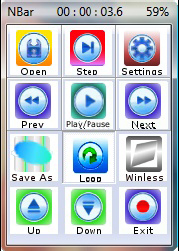
Below is the Nbar snapshot.
The title bar displays the elapsed time of a video in the format hours : minutes : seconds. ms and the elapsed time vs the total duration in percentage.
|
|
|
|
There are four rows of control buttons.
1. The first row includes Open, Step, and Settings buttons.
Open button allows you to select video, audio, image from Open File Dialog.
Step button allows you to step forward video in one frame.
Settings button allows you to set controls in more details.
2. The second row includes Previous, Play/Pause, and Next buttons.
Previous button allows you to go backward to the previous media in the playlist.
Play/Pause button allows you to play or pause video.
Next button allows you to go forward to the next media in playlist.
3. The third row includes Save As, Loop, and Windowless buttons.
SaveAs button allows you to save current configuration of the player such as windows size.
Loop button allows you to enable/disable playback of a playlist in loop.
Windowless button allows you to set window in normal or in windowless.
4. The last row includes Up, Down, and Exit buttons.
Up button allows you to increase the volume a little bit.
Down button allows you to decrease the volume a little bit.
Exit button allows you to exit the player. If the player was launched alone with a *.npm database file, after exiting, the *.npm file will be upgraded to the last status of the player.
While the player was launched by itself, there are no any files to be saved.
Here are two pages of the settings: playlist and media.
Playlist page allows user to add and delete a media file into the playlist. User can also use the up and down button to change the position of a media item in the playlist.
Media page allows user to set loop, rate, volume, balance, mute, and windowless. Furthermore
user can click info drop down button to display the media information. The value of rate is ranged
from 0.033333333 to 200. The regular value is 1.0. So you can watch the speed video by setting
rate to 2.0 and watch the slow video by setting rate to 0.06.
|
|
Customization
|
|
You can customize player and store configuration in a .npm file. You can also double click
a .npm file to launch player or launch player in a command line in following format:
"FullPath\Ladybug Player.exe" [FullPath\myconfig.npm | FullPath\mymedia.*]
This command line means that run Ladybug Player without parameter or with parameter
myconfig.npm, or mymedia.*.
If there are no parameters Ladybug Player will be launched with default configuration. You can
launch as many Ladybug Player as your computer resources are not exhausted.
*.npm represents Neatware Player Media.
In the case that the first parameter is a *.npm file, Ladybug Player is going to launch the player by setting the configuration from the *.npm file where *.npm is a Sqlite 3 database file. You can read and modify *.npm files by any Sqlite Database Managers. Usually we use an added-on called Sqlite Manager in FireFox browser.
In the case that the first parameter is a media file, Ladybug Player is going to launch the player
and display the media file instantly. More than one parameters are reserved for future use.
|
|
Keyboard Control
|
|
Ladybug Player supports the use of keyboard for media player control. Here is the list of keyboard control:
| Key |
Operation |
Description |
| F1 |
Help |
Display PDF file |
| F2 |
Play/Pause |
toggle |
| F3 |
Step |
Show one frame |
| F4 |
Loop |
Play media in loop or not |
| F5 |
Open |
Insert one or a set of media into playlist and start current |
| F6 |
Settings |
Set playlist or media |
| F7 |
Save As |
Save .npm file in Ladybug Player folder |
| F8 |
Windowless |
Toggle windowless and frame |
| <- |
Previous media |
Play previous media |
| -> |
Next media |
Play next media |
| ^ |
Volume up |
Increase volume |
| v |
Volume down |
Decrease volume |
| ESC |
Exit |
Exit player |
|
|
Applications
|
|
1. Two videos overlay on one fullscreen video
2. Two windowless videos
3. Two players as Picture-in-Picture videos
4. 4K UltraHD HEVC ( H.265 ) video
|
|
Download
|
|
Try Ladybug Player Free for 30 Days.
|
 Copyright© 2003-2014, Neatware. All Rights Reserved.
|